How to Create Accurate Repair Estimates in Fullbay
Thought experiment time: let’s say you’re going out to dinner and you’ve ordered a burger. But when your food gets to the table, it’s actually a Caesar salad…and it costs $5 more than what you actually ordered. (Also, for some reason, the server can’t just take it back and give you what you wanted in the first place.)
You’d be pretty upset in that scenario, right? Unfortunately, that’s how heavy-duty repair shop customers feel when they get stuck with inaccurate estimates for a job. If your customers end up with a metaphorical Caesar salad, they could easily leave a bad review or avoid doing business with your shop in the future.
But once you know how to create heavy-duty repair estimates you can count on, your shop can streamline its approval process, improve customer satisfaction, and build long-lasting trust with clients. The best way to do that is by adopting Fullbay — our heavy-duty repair shop management platform, which helps heavy equipment repair shops generate reliable estimates ASAP.
How Accurate Estimates Improve Your Repair Shop Operations
When you don’t have to second-guess your shop’s estimates, you’ll enjoy benefits like:
- Faster approvals. Getting your estimates right the first time will allow you to send them off to customers immediately.
- Reduced disputes. Accurate estimates will give your customers a clear idea of what to expect, meaning they won’t be caught off guard by changes later on.
- Improved customer trust. When you consistently deliver high-quality work that meets customer expectations, those customers are less likely to look elsewhere the next time they need work on their heavy-duty equipment.
- More efficient techs. Workers can use heavy-duty repair shop software to create accurate estimates without wasting time completing this task manually.
- Consistent revenue forecasting. If you know exactly how much money each repair will bring in for your shop, you’ll have no trouble determining future revenues.
Why Fullbay Is the Best Tool for Creating Accurate Repair Estimates
Sometimes, we like to hold off on the “here’s why Fullbay is so great” side of things until the very end of the article. But we’re really good at this part, so this time, we’re getting right into it.
The fact is, building accurate repair estimates by hand can be a huge pain. But you’ll have much less trouble completing this job with our software, which delivers perks like:
- A centralized workflow. Since Fullbay lets you take care of everything through the same interface, your techs won’t have to go out of their way to create estimates.
- Integrated labor time guides. Fullbay integrates with widely used labor guides like MOTOR and Mitchell 1 to help you estimate labor times more accurately.
- Real-time updates. Fullbay’s inventory management features can give you round-the-clock updates on your shop’s part levels and pricing.
- Easy customer communication. Thanks to Fullbay’s customer communication features, you’ll never have trouble getting approval from your clients.
- Improved speed and accuracy. With our platform, you’ll be able to complete estimates faster than ever before. Better yet, that won’t come at the expense of reliability.
Step-by-Step: How to Create a Repair Estimate in Fullbay
Want to know how to create heavy-duty repair estimates you can rely on? Just follow these steps:
Step 1: Start a Service Order
To start creating a service order in Fullbay, navigate to the “Service Order” section. From there, select “Quick SO” if you’re getting ready for a simple job, or “New Service Order” if you need UNLIMITED POWER during the service order creation process. Then, add your customer and their truck/trailer/equipment, or choose a previous customer and unit.
Step 2: Add the Complaint/Diagnosis
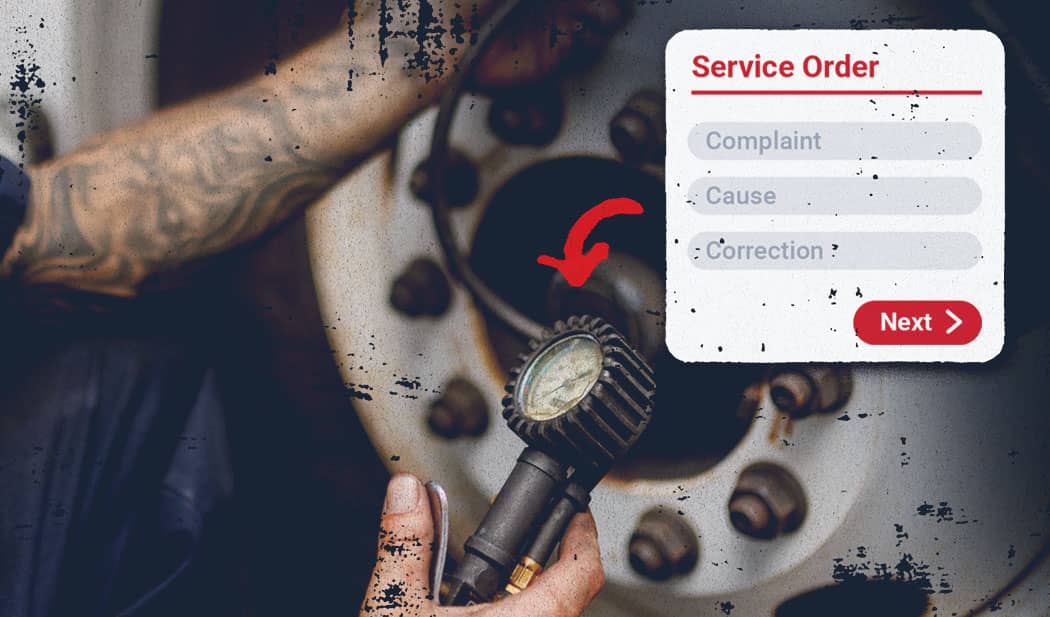
Once you’ve started your service order, move to the “Action Items” tab and enter your:
- Complaint. This is the problem your customer brought their machine in for. While talking to a customer about their complaint, ask open-ended questions to get more information and avoid the temptation to pre-diagnose the issue at hand.
- Cause. As you might expect, this refers to the underlying issue behind your customer’s problem. (Sometimes, you may be able to repair a problem without being able to identify a clear cause. When that’s the case, include details about any relevant components you find.)
- Correction. Finally, this is an explanation of what you will do to treat the cause once your customer approves the repair estimate (assuming you have a clear strategy in mind).
As you enter these details, Fullbay’s AI-powered Service Orders can help at this point in the estimate creation process. With voice-to-text capabilities, you can record notes verbally while staying focused on the repair. Fullbay’s AI can also help you clean up notes, transforming shorthand or fragmented input into clear, professional text that’s ready to share with customers.
Step 3: Add Parts and Labor
Even if every other part of a repair estimate is perfect, it won’t be truly accurate if you don’t know how much parts or labor will cost. Fortunately, Fullbay’s estimate creation process makes it easy to determine these expenses.
To find labor and part costs for your repair estimate, go to the “Parts and Labor” tab inside each Action Item. Then, you can add parts from your shop’s existing inventory. If you need to buy more parts, you can get them through Fullbay, linked purchase orders, or special orders (though you’ll still need to buy these parts after your estimate gets approved).
Fullbay simplifies the process of estimating labor times, too. While building an estimate, you can use labor times from our MOTOR and Mitchell 1 integrations (if enabled) or your shop’s own experience on the “Parts and Labor” tab. You can also factor in markups and discounts at this point in the process.
Step 4: Attach Photos or Files
You don’t have to include documents in your repair estimate creation process, but we’d definitely recommend it. Adding documentation to your repair estimates is a great way to build trust with your customers (and it can help you get their approval).
So, what should you attach to your shop’s estimates? As you might expect, photos of any problems your techs find can be very useful in this context. Meanwhile, inspection sheets and documents give customers a more thorough understanding of the situation at hand.
Step 5: Review and Save the Estimate
By now, you should have added just about everything you need to include in your estimate. Click “Estimate” to save your document in estimate mode (don’t worry, this won’t convert it to an invoice yet).
Before you do anything else with your newly-created document, it’s a good idea to review your totals, labor rates, part expenses, and notes for accuracy and clarity. If you used AI-assisted notes earlier in the process, this review helps ensure everything is complete and consistent.
As part of your final review, you should:
- Make sure you’re using Action Items correctly to keep jobs organized
- Verify your shop’s inventory levels/rates
- Double-check the times listed in labor guides
- Add any photos or documents you missed
A thorough review helps prevent delays, reduces customer questions, and sets the stage for faster approvals.
Step 6: Send the Estimate to the Customer
Has it been a while since you last updated your shop’s repair estimate workflow? If it has, you know how awful it can be to play “phone tag” with customers (as opposed to playing freeze tag with them, which we highly recommend). Of course, this is just as much of a hassle for your clients.
Fullbay’s Customer Portal and 2-Way Texting features practically eliminate this source of mutual frustration. With our system, you can send estimates to customers, ask for their approval, and track responses. Then, they’ll be able to approve or decline estimates from their smart device or computer.
Step 7: Track Status and Convert to a Repair Order
Once your estimate has been approved by the customer, it will go directly into your shop’s active service work. Meanwhile, declined and expired estimates will be stored for future reference. And since Fullbay keeps every version of your documents in one place, your techs won’t have to deal with duplicate work.
Schedule Your Fullbay Demo Today
Hopefully, this article has given you a better idea of how to create heavy-duty repair estimates with Fullbay. Of course, the best way to find out what our software can do for your shop is to see it in action.
Are you ready to learn more about Fullbay’s repair estimate creation capabilities? If so, set up a demo right away!


Get news & tips right in your inbox.